Friday, March 15, 2013

new openSUSE

Downloaded the live KDE (32-bit) version of openSUSE 12.3 after reading this review. I burned the .iso onto a DVD using Brasero in Debian Wheezy.

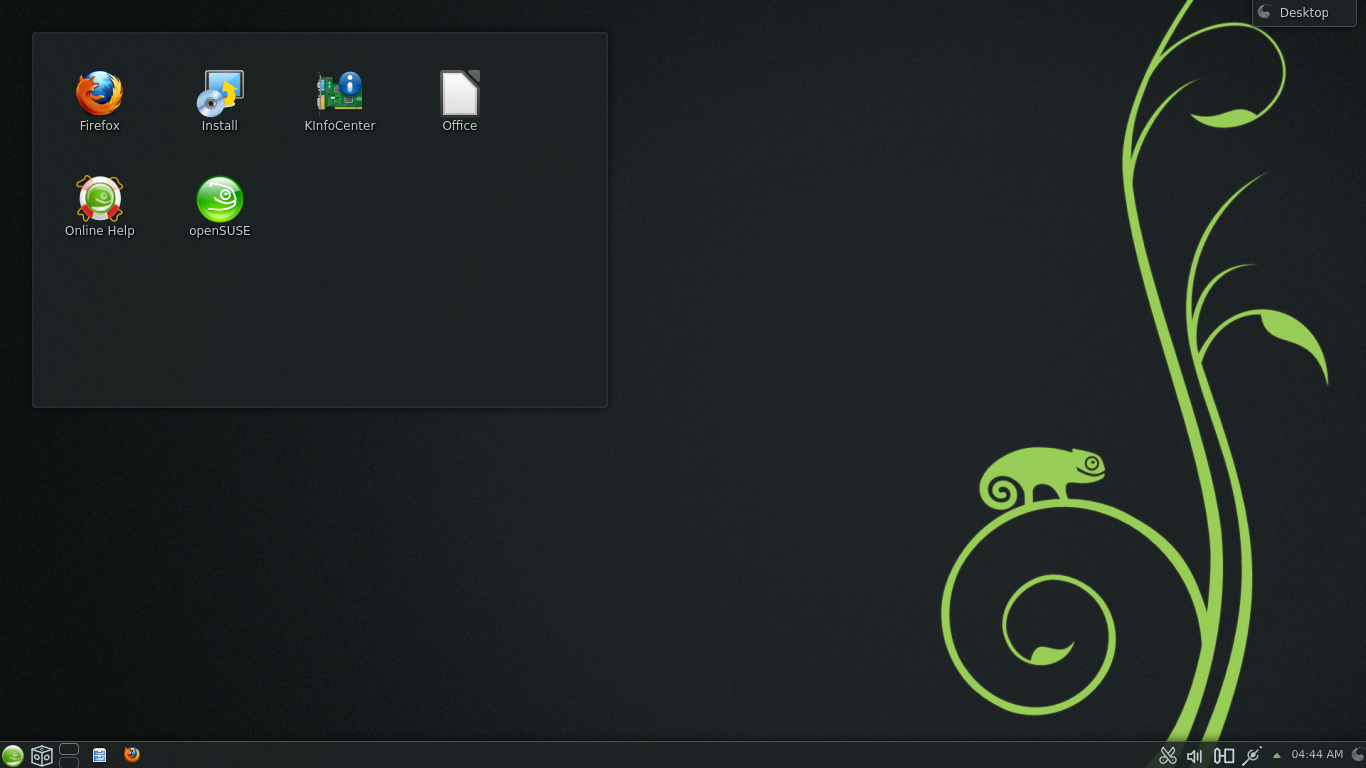
My first view after booting into a live session on my Compaq notebook:


A darker theme than what you usually see in openSUSE, but nice.

Default stuff includes KDE 4.10.00, Firefox 19.0, and LibreOffice 3.6. For more info, see the review that I mentioned above. You can also check out openSUSE's web site and their page at DistroWatch. Also, Muktware has a review already: openSUSE 12.3: Getting better and better

Everything in the live session looks fine here; I hope to do an installation within the next few days, if I get a chance.


Thursday, March 14, 2013

about su

Here's an old article (but still a very good one) about the su command in Linux (thanks going out to "securitybreach" at the Bruno's All Things Linux forums): http://www.linfo.org/su.html

fedora?


I got going with Fedora with Fedora 14; since then, I usually have both of the most recent releases running here -- currently, F17 (KDE) and F18 (GNOME).

A lot of times, I guess you could describe Fedora as "Red Hat Sid/Testing." The new releases come every six months or so, and with the frequent kernel upgrades that come in (often every week or two), I experience more weirdness booting Fedora than I see in any other distro.

Yet, I enjoy running Fedora. I think they do an amazing job, considering what kind of distro it is. I prefer Fedora over running Debian Sid, or running Debian Testing all the time (I've had good experiences, however, with stepping into Testing a few months after the Squeeze and Wheezy "freezes"). Okay, every now and then I have to boot with the previous kernel instead of the current one, but other than that it seems surprisingly stable.

Of course, having it as one of the distros in my multi-boot set-up is one thing; using it as the sole operating system (and/or replacing Debian with it) would be another! On that note, some recent stuff from DistroWatch's comments section (looks like some people just aren't "feeling the love"):

44 • MY choice of operating system (by Pissed off Fedora victim on 2013-03-13 23:14:37 GMT from United States)

Fedora is getting bad.
Their ill conceived updates victimize the users.

Things an update has broken on a running system , Not hackers but foolish mistakes from Fedora's update servers

No sound .
No mouse.
No Network.
And now.
No Firewall.
Dozens of rules changed by an update and no easy way to fix it. I find out. They renamed eth0 to p3p1 . I can not even find any info except iptables Shades of 1960's Debian Potatoe. I hate adding iptables rules, Manually.
I guess it is time to start using a real operating system written by someone who cares like Windows 8. I wont be back Fedora.

​45 • re: MY choice of operating system (by Peter Besenbruch on 2013-03-14 04:20:44 GMT from United States)

Fedora Is THE distribution of bleeding edge change and to hell with the consequences. It's principal use is as a test bed for future Red Hat Enterprise Linux upgrades. Happy Fedora users are those who like the bleeding edge, and who don't mind tinkering. Hobbyists. If you need to get actual work done, Fedora is the last distro I would consider.

46 • @44 choices... (by DavidEF on 2013-03-14 12:07:11 GMT from United States)

"I guess it is time to start using a real operating system written by someone who cares like Windows 8. I wont be back Fedora."

I'm hoping you're being sarcastic, or in some way joking at least. But, in the off chance that you really BELIEVE that line, let me be the first to say: Don't come back. If you actually think Windows 8 is made by someone who cares about you, please don't ever use linux again, and please don't come back on here trolling again. No hard feelings, but have a nice life, and enjoy your Windows OS.

47 • @46 (by slink on 2013-03-14 12:56:07 GMT from United States)

I can believe that the commenter on #44 believes what he/she wrote. I swore off of Fedora years ago due to difficulties in getting basic features working and also in keeping them working.

If the only two OS choices for a PC were Win8 and Fedora, and I were asked which one was crafted by a company that cares anything about the end user, I would not hesitate to choose Win8 either.

​

LOL!​ Stay away from Fedora! (Looking forward to F19...)

Sunday, March 10, 2013

debian the great

I run several Linux distributions here, but I consider Debian to be my "primary" distro. It's the one that I'm most likely to still be using years and years down the road. For me, it's the best, most dependable distro out there. Right now, I'm running Debian Wheezy, the current Debian Testing.

Obviously, many other people feel the same. Steven Rosenberg explains some of the reasons why he likes Debian in If you run Linux, you can run Debian. At least give it a try. I especially like this part from his blog post:

I’ve installed and run just about everything. Yes, that includes Slackware. But Debian is what I always fall back on. I can count on Debian and its volunteers. I can get work done. I can enjoy things like video and music without trouble. No corporation is in control of my desktop experience. My “weakest” machines can run it, as do my strongest.

Debian doesn't give me "the latest and greatest" stuff, and it doesn't give me the simplest installation. But it always gives me a rock-solid system; I install it, I keep it updated, and I don't worry about it at all. No surprises; quite simply, a system that always works.

a great run


I've been running Ubuntu LTS releases here since 6.06 (Dapper). I don't run only Ubuntu; it's just one of the distros I use. I'm not tied down to it. I'm not a fanboy. I keep running it because it works for me, and because I like it.

Ubuntu is the most controversial, criticized distribution in the Linux world. It seems like Canonical is always doing something that makes people come screaming out of the woodwork, exploding in anger.

Many of them don't even use Ubuntu, but never miss an opportunity to blast Canonical and Mark Shuttleworth.

The Ubuntu-bashing never ends.

Well, I've got Ubuntu 12.04 (Precise) running here, and I think it's great. I don't care about the politics and the controversies. If 12.04 keeps doing what I want and need it to do (and I have no reason to think that it won't), I'll keep running it until the next LTS release comes out. I think that will be 14.04, in April of 2014.

At that point, I'll do what I've been doing with LTS releases since Dapper. I'll download the .iso and burn a disk and give it a spin. If it looks good, I'll install it. And if it runs fine and looks like it'll work for me, I'll stick with it -- until the next LTS release.

It's as simple as that. It's free software, a free operating system. Nobody's twisting my arm and forcing me to use Ubuntu. If I see too many things I don't like about it, I won't use it anymore. But that decision won't have anything to do with how many people moan and complain about whatever they don't like about Canonical and Shuttleworth. It won't have anything at all to do with what anyone else thinks.

I'll either like it and continue using it, or I won't and I won't -- just like any other Linux distribution that I'm currently running, or that I've run in the past. Whatever happens, I'll tip my hat to Canonical and Mark Shuttleworth for putting this distro out there for people to use (or not use). Hopefully, the next LTS release will be as good for me as the current one, but if not, hey, it's been a great run.

Thursday, March 7, 2013

a handy list

This site looks like a useful resource: The LiveCD List

From the site's "About" page:

"This site was created to help sort through the many LiveCDs available to find the right one. It currently tracks LiveCDs, LiveDVDs, and LiveUSB operating systems."

You can sort the list by clicking on the column headers. Readers can leave comments on the "About" page or on a particular project's page, or can email the author directly.

Wednesday, March 6, 2013

the cp command

Some good info and examples of the Linux cp command. Copied from this article from The Geek Stuff: http://www.thegeekstuff.com/2013/03/cp-command-examples/?utm_source=feedburner&utm_medium=feed&utm_campaign=Feed%3A+TheGeekStuff+%28The+Geek+Stuff%29:


The general form of copy command:
cp [option] source destination

1. Copy a file or directory from source to destination

To copy a file, you need to pass source and destination to the copy command. The following example copies the file from project/readme.txt to projectbackup/readme-new.txt
$ cp project/readme.txt projectbackup/readme-new.txt

$ cd projectbackup/

$ ls
readme-new.txt
If you want to copy a file from one folder to another with the same name, just the destination directory name is good enough as shown below.
$ cp project/readme.txt projectbackup/

$ cd projectbackup/

$ ls
readme.txt
A directory (and all its content) can be copied from source to destination with the recursive option -r as shown below:
$ ls project
src/  bin/  doc/  lib/  test/  readme.txt  LICENSE

$ cp -r project/ backup/

$ ls backup
src/  bin/  doc/  lib/  test/  readme.txt  LICENSE

2. Copy multiple files or directories into different location

You can copy more than one file from source to destination as shown below:
$ cd src/
$ cp global.c main.c parse.c /home/thegeekstuff/projectbackup/src/
If the source files has a common pattern, use wild-cards as shown below. In this example, all c extension files gets copied to /home/thegeekstuff/projectbackup/src/ directory.
$ cp *.c /home/thegeekstuff/projectbackup/src/
Copy multiple directories as shown below.
$ cd project/

$ cp -r src/ bin/ /home/thegeekstuff/projectbackup/

3. Backup before copying into a destination

In case if the destination file is already present with the same name, then cp allows you to backup the destination file before overwriting it.
In this example, the readme.txt exists in both project/ and projectbackup/ directory, and while copying it from project/ to projectbackup/, the existing readme.txt is backed up as shown below:
$ cd projectbackup

$ ls -l readme.txt
-rw-r--r-- 1 bala geek 1038 Jan  8 13:15 readme.txt

$ cd ../project 

$ ls -l readme.txt
-rw-r--r-- 1 bala geek 1020 Jan  8 12:25 readme.txt

$ cp --backup readme.txt  /home/thegeekstuff/projectbackup/
The existing file has been moved to readme.txt~ and the new file copied as readme.txt as shown below.
$ cd /home/thegeekstuff/projectbackup/
$ ls -l
-rw-r--r-- 1 bala geek 1020 Jan  8 13:36 readme.txt
-rw-r--r-- 1 bala geek 1038 Jan  8 13:15 readme.txt~
Talking about backup, it is important for you to understand how rsync command works to backup files effectively.

4. Preserve the links while copying

When you execute the cp command, if the source is a link file, then the actual file gets copied and not the link file. In case if you only want to copy the link as it is, specify option -d as shown below:
The following shows that without option -d, it will copy the file (and not the link):
$ cd project/bin

$ ls -l startup.sh
lrwxrwxrwx 1 root root 18 Jan  8 13:59 startup.sh -> ../test/startup.sh

$ cp startup.sh /home/thegeekstuff/projectbackup/bin/

$ cd /home/thegeekstuff/projectbackup/bin/

$ ls -l
-rw-r--r--  1 root root       102 Jan  8 14:02 startup.sh
To preserve the link while copying, do the following:
$ cd project/bin

$ cp -d startup.sh /home/thegeekstuff/projectbackup/bin/

$ ls -l startup.sh
lrwxrwxrwx 1 root root 18 Jan  8 14:10 startup.sh -> ../test/startup.sh

5. Don’t overwrite an existing file

If you want to copy only when the destination file doesn’t exist, use option -n as shown below. This won’t overwrite the existing file, and cp command will return with success exit code as shown below:
$ cd projectbackup

$ ls -l readme.txt
-rw-r--r-- 1 bala geek 1038 Jan  8 13:15 readme.txt

$ cd ../project 

$ ls -l readme.txt
-rw-r--r-- 1 bala geek 1020 Jan  8 12:25 readme.txt

$ cp -n readme.txt /home/thegeekstuff/projectbackup/bin/

$ echo $?
0
As you see below, the destination file didn’t get overwritten.
$ cd projectbackup

$ ls -l readme.txt
-rw-r--r-- 1 bala geek 1038 Jan  8 13:15 readme.txt

6. Confirm before overwriting (interactive mode)

When you use -i option, it will ask for confirmation before overwriting a file as shown below.
$ cp -i readme.txt /home/thegeekstuff/projectbackup/
cp: overwrite `/home/thegeekstuff/projectbackup/readme.txt'? y

7. Create hard link to a file (instead of copying)

When you execute cp command, it is possible to create a hard link of the file (instead of copying the file). The following example creates the hard link for sample.txt file into directory test/,
$ ls -li sample.txt
10883362 -rw-r--r-- 2 bala geek   1038 Jan  9 18:40 sample.txt

$ cp -l sample.txt test/ 

$ ls -li test/sample.txt
10883362 -rw-r--r-- 2 bala geek   1038 Jan  9 18:40 test/sample.txt
As seen above, the test/sample.txt is a hard linked file to sample.txt file and the inode of both files are the same.

8. Create Soft link to a file or directory (instead of copying)

When you execute cp command, it is possible to create a soft link to a file or directory. In the following example, a symbolic link gets created for libFS.so.6.0.0 as libFS.so,
# cd /usr/lib/

# ls -l libFS.so.6.0.0
-rw-r--r-- 1 root root 42808 Nov 19  2010 libFS.so.6.0.0

# cp -s libFS.so.6.0.0 libFS.so

# ls -l libFS.so
lrwxrwxrwx 1 root root 14 Jan  9 20:18 libFS.so -> libFS.so.6.0.0

9. Preserve attributes of file or directory while copying

Using -p option, you can preserve the properties of a file or directory as shown below:
$ ls -l sample.txt
-rw-r--r-- 2 bala geek   1038 Jan  9 18:40 sample.txt

$ cp -p sample.txt test/ 

$ ls -l test/sample.txt
-rw-r--r-- 2 bala geek   1038 Jan  9 18:40 test/sample.txt
It is also possible to preserve only the required properties like mode, ownership, timestamps, etc.,
The following example preserves the mode of a file while copying it:
$ cp --preserve=mode sample.txt test/

10. Copy only when destination file is newer than SOURCE or missing

Copy doesn’t take much time for a small file, but it may take considerable amount of time when a huge file is copied. So, while copying a big file, you may want to make sure you do it only when the destination file is newer than the source of when the destination file is missing using the option -u as shown below.
In this example, the two files LICENSE and readme.txt will be copied from project/ to projectbackup/. However, the LICENSE file already exists in projectbackup/ directory and that is newer than the one in the project/ directory.
$ cd project/

$ ls -l LICENSE readme.txt
-rw-r--r-- 1 bala geek 108 Jan  8 13:14 LICENSE
-rw-r--r-- 1 bala geek 32 Jan  8 13:16 readme.txt

$ cd /home/thegeekstuff/projectbackup/

$ ls -l LICENSE readme.txt
ls: cannot access readme.txt: No such file or directory
-rw-r--r-- 1 root root 112 Jan  9 20:31 LICENSE
So, in this example, there is no need to copy LICENSE file again to projectbackup/ directory. This is automatically taken care by cp command, if you use -u option as shown below. In the below example, only readme.txt file got copied as indicated by the time-stamp on the file.
$ cp -u -v LICENSE readme.txt  /home/thegeekstuff/projectbackup/
`readme.txt' -> `/home/thegeekstuff/projectbackup/readme.txt'

$ cd /home/thegeekstuff/projectbackup/

$ ls -l LICENSE readme.txt
-rw-r--r-- 1 bala geek  112 Jan  9 20:31 LICENSE
-rw-r--r-- 1 bala geek   32 Jan  9 22:17 readme.txt