I like KDE Plasma 5 except for one big thing: You can't have different wallpapers (and different widgets) on different virtual desktops. See: https://bugs.kde.org/show_bug.cgi?id=343246
I have Plasma 5 in openSUSE 42.2, but I'm still using plasma-desktop 4.11.x in Debian Jessie. I'm in no hurry to give up Plasma 4, mainly because of the above issue.
It seems clear that the KDE devs don't think this is important. But I can have different wallpapers for different workspaces in Xfce, and in LXDE. Why can't something similar be done for KDE Plasma 5?
I use several different desktop environments and window managers, but I've run KDE since I started out with Linux. Perhaps it's about time to move on. Like many others have expressed, I never wanted KDE's "Activities" and don't want or need that "feature" now. It's still a pretty good desktop environment, overall, but not being able to have different wallpapers on different desktops takes a lot of the fun out of it for me.
Just fix this one thing. Please.
Showing posts with label kde4. Show all posts
Showing posts with label kde4. Show all posts
Sunday, March 26, 2017

Tuesday, February 2, 2016
finding the kde version number
Used to be that when I wanted to find the KDE version number, I'd just open a KDE app and click on "About KDE" under the Help menu.
Open up Konsole in Debian Jessie and go to Help > About KDE and you'll see the following window, which shows the KDE version number:

In KDE apps in openSUSE Leap 42.1, which uses Plasma 5, the About KDE window no longer shows the KDE version number:

So, forget Help > About KDE.
Anyway, there's KInfoCenter (Main Menu > Settings > KInfoCenter). In Debian Jessie:

And, KInfoCenter in openSUSE 42.1:

So, I'm running KDE 4.14.2 in Debian Jessie and KDE Plasma 5.4.3 in openSUSE Leap 42.1, and KInfoCenter is still the best GUI way to quickly find the version number in KDE.
Open up Konsole in Debian Jessie and go to Help > About KDE and you'll see the following window, which shows the KDE version number:

In KDE apps in openSUSE Leap 42.1, which uses Plasma 5, the About KDE window no longer shows the KDE version number:

So, forget Help > About KDE.
Anyway, there's KInfoCenter (Main Menu > Settings > KInfoCenter). In Debian Jessie:

And, KInfoCenter in openSUSE 42.1:

So, I'm running KDE 4.14.2 in Debian Jessie and KDE Plasma 5.4.3 in openSUSE Leap 42.1, and KInfoCenter is still the best GUI way to quickly find the version number in KDE.
Wednesday, February 11, 2015
jessie kde-openbox
I downloaded debian-jessie-DI-rc1-i386-kde-CD-1.iso (about 641 MB) and replaced Wheezy Xfce with Jessie KDE on my "primary" computer. Here's a look at the default desktop:

And after setting a few things up, including a desktop right-click menu:

I don't use Konqueror a lot, but it's kinda cool how it can be used for file management and web browsing, at the same time!

Desktop effects work fine.

I also did some additional tweaking to my KDE desktop set-up:

I like that the inxi program is available right there in the repos. I've added Openbox and a bunch of my favorite apps. I decided to go with KDE instead of Xfce on my main computer for a number of reasons; KDE gives you a beautiful desktop, great tools, and you get Dolphin (and Konqueror) instead of GNOME's Nautilus or Xfce's Thunar -- much better deal, in my opinion. I can switch over to Openbox when I'm in the mood for something lighter, and I've still got all of KDE underneath.


Konqueror's Services tab gives you the KDE Menu:

And after setting a few things up, including a desktop right-click menu:
I don't use Konqueror a lot, but it's kinda cool how it can be used for file management and web browsing, at the same time!
Desktop effects work fine.
I also did some additional tweaking to my KDE desktop set-up:
I like that the inxi program is available right there in the repos. I've added Openbox and a bunch of my favorite apps. I decided to go with KDE instead of Xfce on my main computer for a number of reasons; KDE gives you a beautiful desktop, great tools, and you get Dolphin (and Konqueror) instead of GNOME's Nautilus or Xfce's Thunar -- much better deal, in my opinion. I can switch over to Openbox when I'm in the mood for something lighter, and I've still got all of KDE underneath.
Konqueror's Services tab gives you the KDE Menu:
Monday, November 17, 2014
13.2
I replaced openSUSE 12.3 (KDE) with openSUSE 13.2 (KDE). I installed it using the Live KDE option at the Download page, rather than from the full (4.7GB) DVD. This release ships with KDE 4.14.2.


A shot of the default desktop:
And after some customization:
Saturday, June 28, 2014
kubuntu's cousins
Links to a couple more reviews done by Arindam Sen:
Netrunner 14 "Frontier" Review: Looks and feels awesome to use with new animated wallpapers!
Linux Mint 17 "Qiana" KDE Review: Better than Kubuntu with pleasant aesthetics and superb performance
Sen clearly prefers both of these distros over Kubuntu. The most recent Kubuntu release I've run here is 12.04, which I still have installed, and I haven't tried Netrunner 14 or Mint 17 KDE. I figure that Sen's correct in saying that Netrunner 14 and Mint 17 KDE are better, overall than Kubuntu 14.04. For my purposes, however, Kubuntu 12.04 is good enough that I haven't found any reason to bother with Kubuntu 14.04, Netrunner 14, OR Mint 17 KDE! Whatever -- they all pull from the Ubuntu repos, anyway...
Netrunner 14 "Frontier" Review: Looks and feels awesome to use with new animated wallpapers!
Linux Mint 17 "Qiana" KDE Review: Better than Kubuntu with pleasant aesthetics and superb performance
Sen clearly prefers both of these distros over Kubuntu. The most recent Kubuntu release I've run here is 12.04, which I still have installed, and I haven't tried Netrunner 14 or Mint 17 KDE. I figure that Sen's correct in saying that Netrunner 14 and Mint 17 KDE are better, overall than Kubuntu 14.04. For my purposes, however, Kubuntu 12.04 is good enough that I haven't found any reason to bother with Kubuntu 14.04, Netrunner 14, OR Mint 17 KDE! Whatever -- they all pull from the Ubuntu repos, anyway...
Sunday, January 5, 2014
kde-connect
Article: How to integrate Android into KDE Linux desktop
I guess there are some rough edges yet to be smoothed out, but KDE Connect looks like a good idea.
I guess there are some rough edges yet to be smoothed out, but KDE Connect looks like a good idea.
Monday, December 30, 2013
purely subjective
In his article "In search of the Best KDE Linux distro of 2013: A comparison of 19 leading KDE operating systems," Arindam Sen (one of my favorite Linux bloggers) went to a lot of trouble to provide a detailed analysis of different KDE distros/spins to come up with a conclusion about which one he thinks is "the best."
The article is informative, and that alone makes it worth reading. His conclusion (spoiler alert: he went with Netrunner) should certainly be taken with a grain of salt.
Sen only used one computer for the comparisons, and he only used 64-bit operating systems. Notably missing from the list: Sabayon (due to hardware issues) and Slackware (and anything based on Slackware).
His criteria:
- Installation (20% weightage): Installation time required and installation complexity
- Aesthetics (20% weightage): Including graphical boot splash and differentiation in KDE plasma desktop
- Hardware Recognition (20% weightage): Includes automatic wifi and touchpad recognition along with setting up bumblebee for hybrid graphics. Touchpad recognition also includes automatic 2 finger scroll & single/double functions.
- Pre-installed Applications (10% weightage): Checking if office, PDF viewer, browser, email client, download manager, torrent client, IM, Skype, Photo viewer, GIMP, Screenshot app, audio/video player, CD/DVD writer, Live USB creator, Wine, etc. are present or not. An OS may include a lot more additional applications but my testing was limited to the aforementioned packages.
- Performance (30% weightage): RAM/CPU utilization at steady state under similar conditions on the same machine and time to boot are the two main criteria for performance check.
Nothing about package management, how well-stocked the repos are, the strength of the development teams, available documentation, how long the distro's been around -- things that I would consider when choosing a distro. The applications that a distro ships with? That part might not mean much to me when I've got, for example, the Debian repos available to me. Installation time and complexity might not be a big factor when you're installing a rolling-release distro like Arch Linux or PCLinuxOS (in theory, you're only gonna have to install it one time) (Sen didn't include Arch, which doesn't really have a KDE spin -- with Arch, you choose whatever environment you want at installation time).
Anytime I see the word "best," alarm bells start going off in my head. I would have preferred that Sen simply provided the data comparing even these same distros and left out the part about trying to conclude which one was best. Any conclusion of that sort can only be purely subjective because for different users there will be different things that are most important in a distro.
I'd probably go with Debian KDE or Kubuntu, based on a different set of criteria. But that's just me.
The article is informative, and that alone makes it worth reading. His conclusion (spoiler alert: he went with Netrunner) should certainly be taken with a grain of salt.
Sen only used one computer for the comparisons, and he only used 64-bit operating systems. Notably missing from the list: Sabayon (due to hardware issues) and Slackware (and anything based on Slackware).
His criteria:
- Installation (20% weightage): Installation time required and installation complexity
- Aesthetics (20% weightage): Including graphical boot splash and differentiation in KDE plasma desktop
- Hardware Recognition (20% weightage): Includes automatic wifi and touchpad recognition along with setting up bumblebee for hybrid graphics. Touchpad recognition also includes automatic 2 finger scroll & single/double functions.
- Pre-installed Applications (10% weightage): Checking if office, PDF viewer, browser, email client, download manager, torrent client, IM, Skype, Photo viewer, GIMP, Screenshot app, audio/video player, CD/DVD writer, Live USB creator, Wine, etc. are present or not. An OS may include a lot more additional applications but my testing was limited to the aforementioned packages.
- Performance (30% weightage): RAM/CPU utilization at steady state under similar conditions on the same machine and time to boot are the two main criteria for performance check.
Nothing about package management, how well-stocked the repos are, the strength of the development teams, available documentation, how long the distro's been around -- things that I would consider when choosing a distro. The applications that a distro ships with? That part might not mean much to me when I've got, for example, the Debian repos available to me. Installation time and complexity might not be a big factor when you're installing a rolling-release distro like Arch Linux or PCLinuxOS (in theory, you're only gonna have to install it one time) (Sen didn't include Arch, which doesn't really have a KDE spin -- with Arch, you choose whatever environment you want at installation time).
Anytime I see the word "best," alarm bells start going off in my head. I would have preferred that Sen simply provided the data comparing even these same distros and left out the part about trying to conclude which one was best. Any conclusion of that sort can only be purely subjective because for different users there will be different things that are most important in a distro.
I'd probably go with Debian KDE or Kubuntu, based on a different set of criteria. But that's just me.
Sunday, October 27, 2013
konqueror revisited
I use the SpaceFM file manager most of the time, and KDE's Dolphin sometimes, but KDE's Konqueror is still one of the most awesome applications in Linux. My favorite file manager back in the days of KDE 3.5.x, I rarely use Konqueror anymore in KDE4 because I think Dolphin is so good -- in fact, I often forget that Konqueror is there when I'm using KDE -- but I was reminded of it recently and decided to fire it up in the openSUSE 12.3 KDE spin.
In openSUSE 12.3, Konqueror is found in the KMenu under Internet > Web Browser. Konqueror is actually both a web browser and a file manager. When you first open it up from the menu, it looks like this:
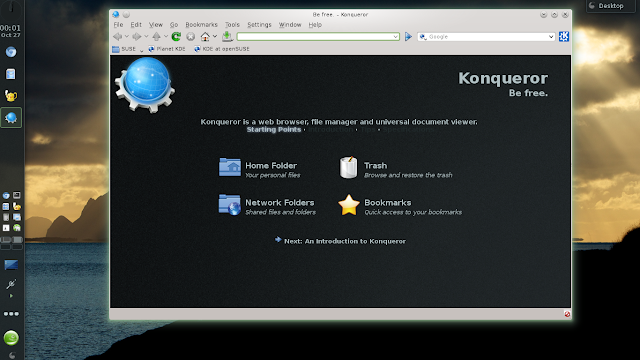
From there, you can go into file manager mode (one way is to simply click on "Home Folder"), or you can browse the web.

Or you can choose from different view profiles (File Management, Web Browsing, etc.) by going to the main toolbar and clicking Settings > Load View Profile. You can also start Konqueror in your preferred view profile from the command line using a command like one of the following:
$ konqueror --profile filemanagement
$ kfmclient openProfile filemanagement
Both of those commands appear to do the same thing. To see the available profiles:
$ konqueror --profiles
Split
filemanagement
webbrowsing
kde_devel
midnightcommander
tabbedbrowsing
I created the Split profile for myself, for example, and it can be opened from the commmand line with either one of the following:
$ konqueror --profile Split
$ kfmclient openProfile Split
I used the second command there to create a launcher for Konqueror to open up in file management mode, with a split window:

One cool thing about Konqueror is that, in either web browser or file management mode, you can split windows multiple times, using top/bottom or left/right splits, or any combination of both:

I wish Dolphin had that capability.
Another very useful feature is the Sidebar along the left side, where you'll find buttons labeled Bookmarks, History, Places, Home Folder, Root Folder, Services, and Network. Here, I've clicked on the Services button, which shows everything you'd find in the KMenu, giving you easy access to all of your apps:

Folks who like to view Linux man pages will appreciate how Konqueror allows you to view them in html format for easy viewing, searching, and printing. For example, I typed man: rsync in the location bar and pressed "Enter" to view rsync's man page:

As with most of KDE, Konqueror is incredibly configurable; there's so much to it that I can only touch on a few things here. For more information, here are a couple of links:
KDE UserBase Wiki Konqueror page: http://userbase.kde.org/Konqueror
The Konqueror Handbook: http://docs.kde.org/development/en/applications/konqueror/index.html
In openSUSE 12.3, Konqueror is found in the KMenu under Internet > Web Browser. Konqueror is actually both a web browser and a file manager. When you first open it up from the menu, it looks like this:

From there, you can go into file manager mode (one way is to simply click on "Home Folder"), or you can browse the web.

Or you can choose from different view profiles (File Management, Web Browsing, etc.) by going to the main toolbar and clicking Settings > Load View Profile. You can also start Konqueror in your preferred view profile from the command line using a command like one of the following:
$ konqueror --profile filemanagement
$ kfmclient openProfile filemanagement
Both of those commands appear to do the same thing. To see the available profiles:
$ konqueror --profiles
Split
filemanagement
webbrowsing
kde_devel
midnightcommander
tabbedbrowsing
I created the Split profile for myself, for example, and it can be opened from the commmand line with either one of the following:
$ konqueror --profile Split
$ kfmclient openProfile Split
I used the second command there to create a launcher for Konqueror to open up in file management mode, with a split window:

One cool thing about Konqueror is that, in either web browser or file management mode, you can split windows multiple times, using top/bottom or left/right splits, or any combination of both:

I wish Dolphin had that capability.
Another very useful feature is the Sidebar along the left side, where you'll find buttons labeled Bookmarks, History, Places, Home Folder, Root Folder, Services, and Network. Here, I've clicked on the Services button, which shows everything you'd find in the KMenu, giving you easy access to all of your apps:

Folks who like to view Linux man pages will appreciate how Konqueror allows you to view them in html format for easy viewing, searching, and printing. For example, I typed man: rsync in the location bar and pressed "Enter" to view rsync's man page:

As with most of KDE, Konqueror is incredibly configurable; there's so much to it that I can only touch on a few things here. For more information, here are a couple of links:
KDE UserBase Wiki Konqueror page: http://userbase.kde.org/Konqueror
The Konqueror Handbook: http://docs.kde.org/development/en/applications/konqueror/index.html
Sunday, October 13, 2013
side panels
I normally use top or bottom panels for my Linux desktops, but to make better use of a couple of my notebooks' 1366x768 monitor size, I've been experimenting with some side panel setups.
KDE side panel in openSUSE:

KDE side panel in Sabayon:

xfce4-panel in Bridge Linux (set to auto-hide):

xfce4-panel in Debian Wheezy (set to auto-hide):

And, one more... using the tint2 panel in Openbox in CrunchBang Linux:

Panels along the left side turned out to be surprisingly easy for me to get used to, perhaps because I like using the Unity launcher in Ubuntu. The thought here is that side panels are probably better than top or bottom panels for wide-screen monitors. Not everyone would agree, I guess.
KDE side panel in openSUSE:

KDE side panel in Sabayon:

xfce4-panel in Bridge Linux (set to auto-hide):

xfce4-panel in Debian Wheezy (set to auto-hide):

And, one more... using the tint2 panel in Openbox in CrunchBang Linux:

Panels along the left side turned out to be surprisingly easy for me to get used to, perhaps because I like using the Unity launcher in Ubuntu. The thought here is that side panels are probably better than top or bottom panels for wide-screen monitors. Not everyone would agree, I guess.
Tuesday, October 1, 2013
kwheezy 1.2
Back in August, I took a look at a live session of KWheezy 1.0.1. Kwheezy 1.2 was released on September 20th. Here's a link to Jim Lynch's review of the release over at Desktop Linux Reviews.
Lynch had mostly positive things to say about Kwheezy; it looks like a solid distro. I agree with his comment that the "enormous range of [included] applications is both good and bad." For my tastes, Kwheezy ships with far too much stuff, but other users might find a loaded distro like this to be appealing.
Lynch had mostly positive things to say about Kwheezy; it looks like a solid distro. I agree with his comment that the "enormous range of [included] applications is both good and bad." For my tastes, Kwheezy ships with far too much stuff, but other users might find a loaded distro like this to be appealing.
Monday, September 30, 2013
a couple of reviews
Distros based on Debian Testing aren't really my cup of tea, but from what I've read, the Testing-based SolydXK is certainly worth a look. They deliver two spins: One that comes with Xfce (SolydX) and one with KDE (SolydK).
Arindam Sen has posted reviews of the latest releases:
SolydX 201309 Review: Simple, effective and efficient, as good as Linux Mint!
SolydK 201309 Review: Rock-solid Debian spin offering KDE 4.11.1
I haven't tried SolydXK yet, but a lot of people are very excited about this new distro. Here's their DistroWatch page: http://distrowatch.com/table.php?distribution=solydxk
And, the SolydXK home page: http://solydxk.com/
Arindam Sen has posted reviews of the latest releases:
SolydX 201309 Review: Simple, effective and efficient, as good as Linux Mint!
SolydK 201309 Review: Rock-solid Debian spin offering KDE 4.11.1
I haven't tried SolydXK yet, but a lot of people are very excited about this new distro. Here's their DistroWatch page: http://distrowatch.com/table.php?distribution=solydxk
And, the SolydXK home page: http://solydxk.com/
Sunday, September 8, 2013
12.04.3
The latest Ubuntu LTS release has received updates to version 12.04.3. Arindam Sen posted a review of Ubuntu 12.04.3 and one of Kubuntu 12.04.3 -- fresh installations in both cases. I've got fully updated installations of both of those running here, but mine are updated from the original 12.04 releases:
$ lsb_release -a
No LSB modules are available.
Distributor ID: Ubuntu
Description: Ubuntu 12.04.3 LTS
Release: 12.04
Codename: precise
I prefer to stick with the LTS releases instead of using Ubuntu's "in-between" releases, and I found it interesting that Sen seemed to feel that 12.04.3 was actually better than the 12.10 and 13.04 releases. In the first of those two reviews, he says:
"Ubuntu 12.04.3 is much smoother to use than Ubuntu 12.10 or Ubuntu 13.04, the resource consumption is more than 50% lower in the LTS release. Further, compared to Ubuntu 13.04, Ubuntu LTS occupies about 60% less space."
Sen updated to KDE 4.11.0 in Kubuntu 12.04.3 (by default, it comes with KDE 4.8.5), and provided instructions for doing so in the second review, where he concluded:
"KDE 4.11.00 or not, the LTS release is still way better than Kubuntu 12.10 or 13.04."
I'm sticking with KDE 4.8.5 in Kubuntu because I'm already running 4.11.x in Sabayon and Chakra. Also, I'm happy with 4.8.5, although I have to admit that 4.11.x brings some nice improvements.
As always, Sen does a very thorough job with these reviews -- he's one of the best out there -- so anyone interested in these or other distros, do yourself a favor and check out his blog, Linuxed - Exploring Linux distros.
$ lsb_release -a
No LSB modules are available.
Distributor ID: Ubuntu
Description: Ubuntu 12.04.3 LTS
Release: 12.04
Codename: precise
I prefer to stick with the LTS releases instead of using Ubuntu's "in-between" releases, and I found it interesting that Sen seemed to feel that 12.04.3 was actually better than the 12.10 and 13.04 releases. In the first of those two reviews, he says:
"Ubuntu 12.04.3 is much smoother to use than Ubuntu 12.10 or Ubuntu 13.04, the resource consumption is more than 50% lower in the LTS release. Further, compared to Ubuntu 13.04, Ubuntu LTS occupies about 60% less space."
Sen updated to KDE 4.11.0 in Kubuntu 12.04.3 (by default, it comes with KDE 4.8.5), and provided instructions for doing so in the second review, where he concluded:
"KDE 4.11.00 or not, the LTS release is still way better than Kubuntu 12.10 or 13.04."
I'm sticking with KDE 4.8.5 in Kubuntu because I'm already running 4.11.x in Sabayon and Chakra. Also, I'm happy with 4.8.5, although I have to admit that 4.11.x brings some nice improvements.
As always, Sen does a very thorough job with these reviews -- he's one of the best out there -- so anyone interested in these or other distros, do yourself a favor and check out his blog, Linuxed - Exploring Linux distros.
Tuesday, August 13, 2013
kwheezy 1.1
Here's a link to the Kwheezy 1.1 release announcement, posted today at the Kweezy Blog.
From the announcement:
Changes in version 1.1:
- Minor improvements to the installer. Including the hardware clock to local-time fix.
- Keyboard selection before and after installation. New app called "Kwheezy Keyboard Selector".
- Locale (language) support. New app called "Kwheezy Localizer".
- Firefox/Thunderbird language extensions.
- Firefox now supports magnet links out-the-box and Flashgot addon enabled with Kget as download manager.
- KDE Touchpad Configuration now installed by default.
- No login sound in Live session (speeds it up a bit).
- A few other minor stuff.
As usual, you can upgrade to Kwheezy 1.1 from the Kwheezy repository via Apper or apt-get.
Also, for those who follow this sort of thing, Kwheezy is currently sitting at #47 on DistroWatch's Page Hit Ranking (30-day span): http://distrowatch.com/index.php?dataspan=4
From the announcement:
Changes in version 1.1:
- Minor improvements to the installer. Including the hardware clock to local-time fix.
- Keyboard selection before and after installation. New app called "Kwheezy Keyboard Selector".
- Locale (language) support. New app called "Kwheezy Localizer".
- Firefox/Thunderbird language extensions.
- Firefox now supports magnet links out-the-box and Flashgot addon enabled with Kget as download manager.
- KDE Touchpad Configuration now installed by default.
- No login sound in Live session (speeds it up a bit).
- A few other minor stuff.
As usual, you can upgrade to Kwheezy 1.1 from the Kwheezy repository via Apper or apt-get.
Also, for those who follow this sort of thing, Kwheezy is currently sitting at #47 on DistroWatch's Page Hit Ranking (30-day span): http://distrowatch.com/index.php?dataspan=4
Thursday, August 1, 2013
kwheezy live
The Kwheezy developer, Euan Thoms, suggested that I "download the torrent" to get the Kwheezy .iso, so I used KTorrent (in Debian Wheezy KDE, by coincidence) to download kwheezy-1.0.1-(32bit).iso.
Huge (3.6G) download. I used K3b to burn it onto a disk, then booted one of my notebooks with it.
Wow. This distro comes fully loaded. Going by what I'm seeing in the live session, Kwheezy would be great for a beginner, and many experienced users would appreciate something like this, as well.
I prefer the classic-style menu in KDE, so I appreciated that this was chosen as the default in Kwheezy.

The panel is set up nicely with all kinds of useful icons. They even included the Icon-Only Task Manager, which I prefer. Of course there are tons of widgets that you can add -- KDE, ftw.

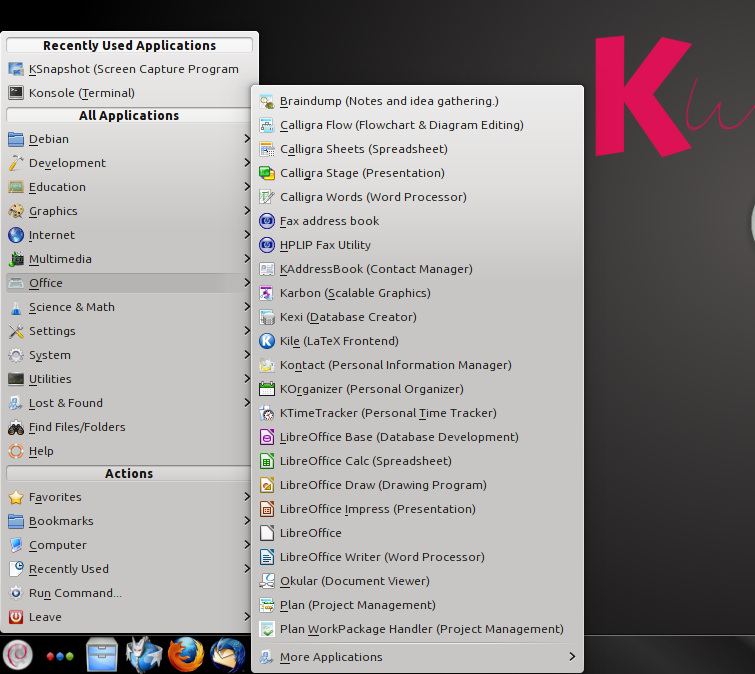
A few more shots showing some of what's in the menu (as always, click on the image for a larger view):


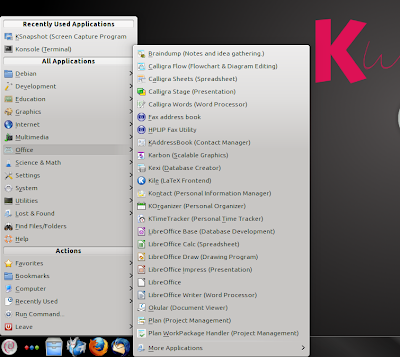


The upper-left corner hotspot is already set up for access to the cube:

As I mentioned earlier, I probably won't be doing an installation with Kwheezy anytime soon, so I can't comment on the installer (other than to mention the "Install Kwheezy" icon located conveniently at the upper-left corner of the desktop) or how well things look once installed. Perfect situation for a virtual installation, though...
However, Kwheezy looks perfect for using for my live sessions, although I'd rather that it came with GParted and not just KDE Partition Manager. But I'm okay with that, too.

Everything's there to get the user up and running, and of course the vast Debian software repositories are available for whatever else might be needed.

In fact, I feel kinda funny calling this a Debian-based distro; clearly, it's Debian Wheezy with KDE -- a lot of KDE! As noted at the Kwheezy home page, "Not so much a distribution based on Debian, but rather 'a well configured Debian KDE installer'."
Looks very good. I'll be surprised if Kwheezy doesn't become very popular among Linux folks. I'm very happy to see it out there.
To find out more, check out the tour page at the Kwheezy site, here.
Huge (3.6G) download. I used K3b to burn it onto a disk, then booted one of my notebooks with it.
Wow. This distro comes fully loaded. Going by what I'm seeing in the live session, Kwheezy would be great for a beginner, and many experienced users would appreciate something like this, as well.
I prefer the classic-style menu in KDE, so I appreciated that this was chosen as the default in Kwheezy.

The panel is set up nicely with all kinds of useful icons. They even included the Icon-Only Task Manager, which I prefer. Of course there are tons of widgets that you can add -- KDE, ftw.

A few more shots showing some of what's in the menu (as always, click on the image for a larger view):




The upper-left corner hotspot is already set up for access to the cube:

As I mentioned earlier, I probably won't be doing an installation with Kwheezy anytime soon, so I can't comment on the installer (other than to mention the "Install Kwheezy" icon located conveniently at the upper-left corner of the desktop) or how well things look once installed. Perfect situation for a virtual installation, though...
However, Kwheezy looks perfect for using for my live sessions, although I'd rather that it came with GParted and not just KDE Partition Manager. But I'm okay with that, too.

Everything's there to get the user up and running, and of course the vast Debian software repositories are available for whatever else might be needed.

In fact, I feel kinda funny calling this a Debian-based distro; clearly, it's Debian Wheezy with KDE -- a lot of KDE! As noted at the Kwheezy home page, "Not so much a distribution based on Debian, but rather 'a well configured Debian KDE installer'."
Looks very good. I'll be surprised if Kwheezy doesn't become very popular among Linux folks. I'm very happy to see it out there.
To find out more, check out the tour page at the Kwheezy site, here.
Wednesday, July 31, 2013
westcliff
Great interview with Malcolm Moore, Network Manager at Westcliff High School for Girls Academy, in England: A year of Linux desktop at Westcliff High School
Westcliff began switching its "student-facing computers" to Linux (using KDE) about a year ago. They're using openSUSE. Looks like it's working out well!
Westcliff began switching its "student-facing computers" to Linux (using KDE) about a year ago. They're using openSUSE. Looks like it's working out well!
Tuesday, July 30, 2013
Kwheezy
Kwheezy was added to the the DistroWatch database this week. Ladislav Bodnar wrote, "Kwheezy is a Debian-based Linux distribution with an intuitive KDE desktop and a good selection of GNU/Linux and open-source software. It also includes popular device drivers, media codecs and browser plugins, all pre-configured and ready for use at first boot."

Kwheezy gives you Debian 7.1 (Wheezy) with KDE and a ton of other goodies (the 64-bit .iso comes in at a whopping 3.7 GB), and it's supposed to be easy to install. Yesterday, I tried a couple of times to download the 32-bit .iso, but the servers were so busy that I gave up; I'll try again some other time.
This distro is potentially a good alternative to something like Mepis, which still doesn't have a Wheezy-based release out, sadly (apparently, Mepis is still alive, but its small group of followers must certainly be running out of patience with the slow rate of development and the frustrating trickle of communication coming from its developer -- like I did months ago). I probably won't install Kwheezy here because I already have Wheezy KDE, but I do want to take a look at a live session. Kwheezy could turn out to be a nice project, especially for beginners, or even for more experienced users who want a quick and easy Debian KDE installation.
The Kwheezy web site: http://www.kwheezy.com/en/
Kwheezy's page at DistroWatch: http://distrowatch.com/table.php?distribution=kwheezy

Kwheezy gives you Debian 7.1 (Wheezy) with KDE and a ton of other goodies (the 64-bit .iso comes in at a whopping 3.7 GB), and it's supposed to be easy to install. Yesterday, I tried a couple of times to download the 32-bit .iso, but the servers were so busy that I gave up; I'll try again some other time.
This distro is potentially a good alternative to something like Mepis, which still doesn't have a Wheezy-based release out, sadly (apparently, Mepis is still alive, but its small group of followers must certainly be running out of patience with the slow rate of development and the frustrating trickle of communication coming from its developer -- like I did months ago). I probably won't install Kwheezy here because I already have Wheezy KDE, but I do want to take a look at a live session. Kwheezy could turn out to be a nice project, especially for beginners, or even for more experienced users who want a quick and easy Debian KDE installation.
The Kwheezy web site: http://www.kwheezy.com/en/
Kwheezy's page at DistroWatch: http://distrowatch.com/table.php?distribution=kwheezy
Friday, July 19, 2013
bye, touchpad
In Debian Wheezy KDE, I was trying to find ways to disable my notebook's touchpad, which I don't like to use at all. I installed kde-config-touchpad, which adds the Touchpad module in System Settings > Input Devices. But I could see nothing in the module for disabling the touchpad.

But, opening up synaptics from KDE Menu > Utilities opened a window with the same touchpad configuration module plus a "Touchpad management" tab. In Touchpad management, I put a check in the box next to "Automatically switch off touchpad, if a mouse is plugged," and that worked.

I found that Kubuntu 12.04 included kde-config-touchpad by default, so I used the same steps there to disable the touchpad in Kubuntu.
Alternatively, I found that it's possible to set the touchpad to be disabled only during typing by running the following command:
$ syndaemon -d
This disables the touchpad for 2 seconds after the most recent keystroke; 2 seconds is the daemon's default. To change this "idle time," use:
$ syndaemon -i n -d
where n is the idle time in seconds.
See man syndaemon.

But, opening up synaptics from KDE Menu > Utilities opened a window with the same touchpad configuration module plus a "Touchpad management" tab. In Touchpad management, I put a check in the box next to "Automatically switch off touchpad, if a mouse is plugged," and that worked.

I found that Kubuntu 12.04 included kde-config-touchpad by default, so I used the same steps there to disable the touchpad in Kubuntu.
Alternatively, I found that it's possible to set the touchpad to be disabled only during typing by running the following command:
$ syndaemon -d
This disables the touchpad for 2 seconds after the most recent keystroke; 2 seconds is the daemon's default. To change this "idle time," use:
$ syndaemon -i n -d
where n is the idle time in seconds.
See man syndaemon.
Monday, May 20, 2013
kubuntu, once again
As I recall, the last time I installed and used Kubuntu, it was Kubuntu 6.06 ("Dapper") -- six or seven years ago!
A lot has changed since then. I've gained quite a bit of knowledge and experience with Linux, for one thing. Also, KDE development moved on to KDE4, which Kubuntu, of course, uses these days. Dolphin has replaced Konqueror as KDE's go-to file browser, and Rekonq has emerged as the default web browser for various KDE distros.
A new (to me) notebook came my way; I spent about a week trying to decide which Linux distro to install on it. I wanted something Debian-based and stable that I could leave installed on the notebook for a few years. I already have Debian Wheezy Xfce, Debian Wheezy GNOME, and Ubuntu 12.04 installed on other computers. I like Mepis, but the latest release isn't out yet (they're still at the Squeeze-based Mepis 11), and while I think Linux Mint is a great distro, I'm not so much of a fan of that one these days. I do like KDE4, and I had good experiences with Kubuntu in the past, so I finally decided to take a look at Kubuntu 12.04.2 LTS ("Precise"), which ships with KDE 4.8.5.
The installation was really quick and easy, and I was presented with this desktop:

That looked nice. Not sure what was up with the empty folder on the desktop, though.
Anyway, I got down to business, tweaking things and adding software. Kubuntu ships with Muon, a package management suite that includes Muon Package Manager, Muon Software Center, and Muon Update Manager. I've read nice things about Muon, but sometimes this old bear can be quite stuck in his ways; I turned off the update manager, and haven't used Muon at all. The first command that I ran in the fresh installation:
$ sudo apt-get install synaptic
I also installed a handful of other apps that didn't come with Kubuntu by default -- mostly apps that are not native to KDE, like the Chromium web browser, Geany text editor, SpaceFM file manager, and Mirage and Geeqie for image viewing.
I noted that while Kubuntu didn't come with Firefox, they did include a "Mozilla Firefox Browser Installer" to make it easy to get that web browser. The LibreOffice suite of applications was included, though.
Kubuntu (especially the LTS version) might be the best choice these days for a Debian-based KDE distro. I personally think that it's a better option than Mepis, Linux Mint KDE, or "straight" Debian with KDE, for various reasons, but the next guy might feel differently.
Here's a look at my Kubuntu Precise desktop after I finished setting things up:

A lot has changed since then. I've gained quite a bit of knowledge and experience with Linux, for one thing. Also, KDE development moved on to KDE4, which Kubuntu, of course, uses these days. Dolphin has replaced Konqueror as KDE's go-to file browser, and Rekonq has emerged as the default web browser for various KDE distros.
A new (to me) notebook came my way; I spent about a week trying to decide which Linux distro to install on it. I wanted something Debian-based and stable that I could leave installed on the notebook for a few years. I already have Debian Wheezy Xfce, Debian Wheezy GNOME, and Ubuntu 12.04 installed on other computers. I like Mepis, but the latest release isn't out yet (they're still at the Squeeze-based Mepis 11), and while I think Linux Mint is a great distro, I'm not so much of a fan of that one these days. I do like KDE4, and I had good experiences with Kubuntu in the past, so I finally decided to take a look at Kubuntu 12.04.2 LTS ("Precise"), which ships with KDE 4.8.5.
The installation was really quick and easy, and I was presented with this desktop:

That looked nice. Not sure what was up with the empty folder on the desktop, though.
Anyway, I got down to business, tweaking things and adding software. Kubuntu ships with Muon, a package management suite that includes Muon Package Manager, Muon Software Center, and Muon Update Manager. I've read nice things about Muon, but sometimes this old bear can be quite stuck in his ways; I turned off the update manager, and haven't used Muon at all. The first command that I ran in the fresh installation:
$ sudo apt-get install synaptic
I also installed a handful of other apps that didn't come with Kubuntu by default -- mostly apps that are not native to KDE, like the Chromium web browser, Geany text editor, SpaceFM file manager, and Mirage and Geeqie for image viewing.
I noted that while Kubuntu didn't come with Firefox, they did include a "Mozilla Firefox Browser Installer" to make it easy to get that web browser. The LibreOffice suite of applications was included, though.
Kubuntu (especially the LTS version) might be the best choice these days for a Debian-based KDE distro. I personally think that it's a better option than Mepis, Linux Mint KDE, or "straight" Debian with KDE, for various reasons, but the next guy might feel differently.
Here's a look at my Kubuntu Precise desktop after I finished setting things up:

Saturday, April 27, 2013
launching stuff
KDE has a reputation of being perhaps the most configurable of the Linux desktop environments; for some people, it has far too many configuration options.
KDE gives you a lot of different ways to launch applications, for example. You can always place launchers on the desktop or on the panel, of course. There's also the default Kickoff Application Launcher, which looks something like this in openSUSE 12.3 (this is KDE 4.10.2):

I prefer the Classic Menu Style, with a custom submenu:

Then there's the Lancelot menu:

Or, you can use the Alt+F2 key combination to bring up KRunner. KRunner's a very versatile tool; you can read a lot more about it at the KDE UserBase Wiki. For simply launching applications, you can just type a few letters into the search box to get a list of apps to choose from:

Homerun, yet another KDE launcher, might not be included by default in your favorite distro. I've read that Kubuntu 13.04 comes with it, but in openSUSE 12.3, I had to add the KDE:Extras repo to be able to install Homerun. Its default "Home" view shows "Favorite Applications," "Favorite Places," and "Recent Documents."

I switched things around so that the "Applications" tab is the default view:

As you can see, Homerun includes four tabs: "Home," "Applications," "Files," and "Power." It also has KRunner at the top, to the right. In some ways, Homerun might be nicer than GNOME Shell's Activities Overview, to which it is often compared. Here's a shot of my Activities Overview in Ubuntu 12.04:

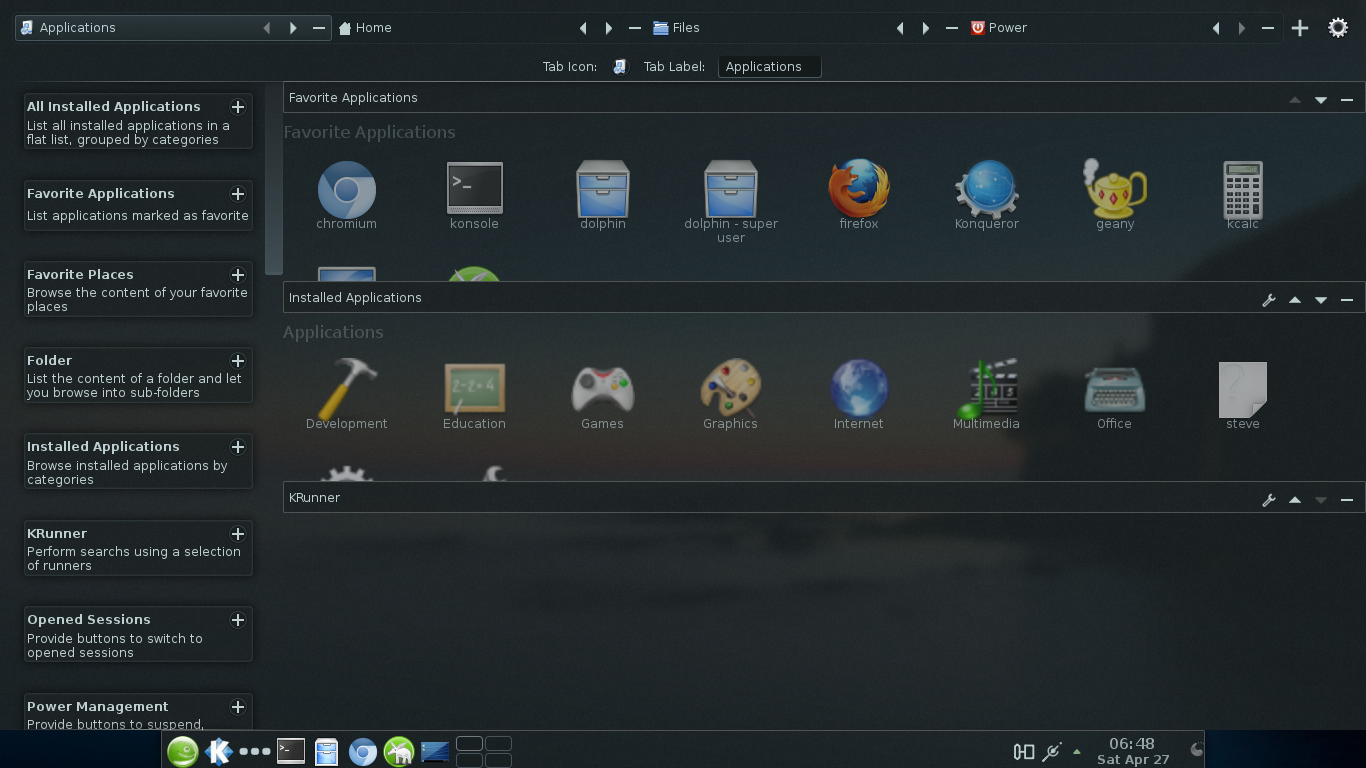
Homerun has a nice configuration mode, accessed by clicking on the icon in the upper-right corner. From here, you can move the tabs around and add/remove various categories:

Besides what I've mentioned here, KDE has, as well, several other ways to launch applications, so it's just a matter of choosing whatever suits one's tastes and needs. In the Dolphin file manager, if you type programs:/ in the search bar and press Enter, you can access applications; it'll look something like this, depending on how you have Dolphin set up:

Konqueror, KDE's web browser/file manager, also gives you some ways to launch applications. Clicking Go > Applications will show you something like this:

Or, click Settings > Show Sidebar, then click on the Sidebar's Services tab:
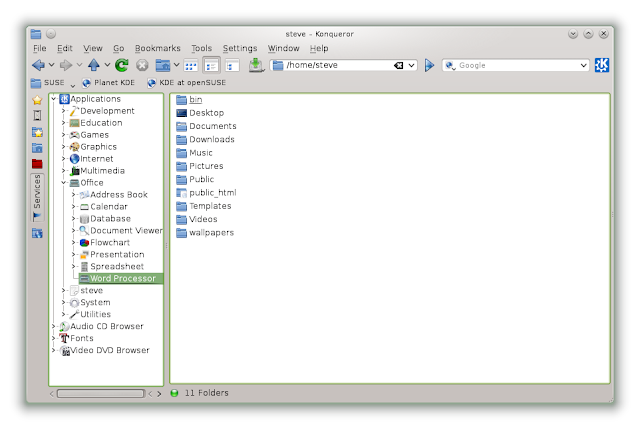
But, who really needs any of these silly approaches when you can simply open up Konsole and run an app from the command line?
steve[~]$ geany
LOL!
I'll end this post with a shot of yet another tool, the Search and Launch Activity. To get this, you have to create a new Activity, then click Templates > Search and Launch. Here's what it looked like in openSUSE 12.3 when I switched to the Search and Launch Activity:

KDE gives you a lot of different ways to launch applications, for example. You can always place launchers on the desktop or on the panel, of course. There's also the default Kickoff Application Launcher, which looks something like this in openSUSE 12.3 (this is KDE 4.10.2):

I prefer the Classic Menu Style, with a custom submenu:

Then there's the Lancelot menu:

Or, you can use the Alt+F2 key combination to bring up KRunner. KRunner's a very versatile tool; you can read a lot more about it at the KDE UserBase Wiki. For simply launching applications, you can just type a few letters into the search box to get a list of apps to choose from:

Homerun, yet another KDE launcher, might not be included by default in your favorite distro. I've read that Kubuntu 13.04 comes with it, but in openSUSE 12.3, I had to add the KDE:Extras repo to be able to install Homerun. Its default "Home" view shows "Favorite Applications," "Favorite Places," and "Recent Documents."

I switched things around so that the "Applications" tab is the default view:

As you can see, Homerun includes four tabs: "Home," "Applications," "Files," and "Power." It also has KRunner at the top, to the right. In some ways, Homerun might be nicer than GNOME Shell's Activities Overview, to which it is often compared. Here's a shot of my Activities Overview in Ubuntu 12.04:

Homerun has a nice configuration mode, accessed by clicking on the icon in the upper-right corner. From here, you can move the tabs around and add/remove various categories:
Besides what I've mentioned here, KDE has, as well, several other ways to launch applications, so it's just a matter of choosing whatever suits one's tastes and needs. In the Dolphin file manager, if you type programs:/ in the search bar and press Enter, you can access applications; it'll look something like this, depending on how you have Dolphin set up:

Konqueror, KDE's web browser/file manager, also gives you some ways to launch applications. Clicking Go > Applications will show you something like this:

Or, click Settings > Show Sidebar, then click on the Sidebar's Services tab:

But, who really needs any of these silly approaches when you can simply open up Konsole and run an app from the command line?
steve[~]$ geany
LOL!
I'll end this post with a shot of yet another tool, the Search and Launch Activity. To get this, you have to create a new Activity, then click Templates > Search and Launch. Here's what it looked like in openSUSE 12.3 when I switched to the Search and Launch Activity:

Subscribe to:
Posts (Atom)
