Golden State's Steph Curry is having another great year, but this season (his 7th in the NBA) will be only the first time he's led the league in scoring.
Number of scoring titles for NBA players not named Jordan or Chamberlain (three or more scoring titles):
Kevin Durant (Oklahoma City) - 4
Allen Iverson (Sixers) - 4
George Gervin (Spurs) - 4
Bob McAdoo (Buffalo Braves) - 3
Neil Johnston (Philadelphia Warriors) - 3
George Mikan (Minneapolis Lakers) - 3
Very short list. Oh, and Michael Jordan led the NBA in scoring TEN times; Wilt Chamberlain did it 7 times.
Source: http://www.basketball-reference.com/leaders/pts_per_g_yearly.html
Sunday, February 28, 2016

Saturday, February 27, 2016
splash!
Former Duke Blue Devil Seth Curry, Steph's younger brother, scored a career high 19 points for Sacramento last night, against the Clippers. Hasn't been getting much playing time, finally got some minutes (about 25). How cool would it be if he could eventually elbow his way into a new Splash Brothers conversation?
Seth shot 5-9 from the field (including 3-4 3PT) and hit 6 of 7 free throws in about 26 minutes of court time. Not bad. The Kings should maybe give him some more minutes, see how things go.
Seth shot 5-9 from the field (including 3-4 3PT) and hit 6 of 7 free throws in about 26 minutes of court time. Not bad. The Kings should maybe give him some more minutes, see how things go.
Tuesday, February 2, 2016
fluxbox in leap
Added Fluxbox to openSUSE Leap 42.1 via the 1-Click Install (see https://software.opensuse.org/package/fluxbox) (this added the X11:windowmanagers repo).
When I logged into Fluxbox, here's the desktop that I was presented with at first:

Not bad, actually. The desktop right-click menu didn't have much in it, but it did have a "Run Command" entry, which is enough to get to work. I'd saved my notes and files from my Fluxbox installation in openSUSE 13.2, so I used those to quickly set things up in 42.1.
I'm using the command fbsetbg -r /home/steve/wallpapers to pull random images from my ~/wallpapers directory. I added feh, then turned on transparency by changing the value of the following line in ~/.fluxbox/init from "false" to "true":
session.forcePseudoTransparency: true
To get a black cursor for Fluxbox, I went to /etc/sysconfig/windowmanager and changed X_MOUSE_CURSOR="DMZ" to X_MOUSE_CURSOR="DMZ-Black", then rebooted for that to take effect.
Here's my ~/.fluxbox/menu file (I think all of these entries work):
# Version 0.1 08.04.2003 - hvogel@hennevogel.de
# Version 0.2 07.12.2004 - hvogel@hennevogel.de
[begin] (Fluxbox Menu)
[exec] (firefox) {firefox}
[exec] (spacefm) {spacefm}
[exec] (konsole) {konsole}
[exec] (geany) {geany}
[include] (~/.fluxbox/menu.xdg)
[submenu] (Tools)
[exec] (chromium) {chromium}
[exec] (dolphin) {dolphin}
[exec] (mirage) {mirage}
[exec] (geeqie) {geeqie}
[exec] (spectacle) {spectacle}
[exec] (gwenview) {gwenview}
[exec] (kcalc) {kcalc}
[exec] (konqueror) {kfmclient openProfile filemanagement}
[exec] (YaST) {/usr/bin/xdg-su -c /sbin/yast2}
[end]
[submenu] (Fluxbox Configuration) {}
[config] (Config)
[workspaces] (Workspace)
[submenu] (System-Styles) {Choose a style...}
[stylesdir] (/usr/share/fluxbox/styles)
[end]
[submenu] (User-Styles) {Choose a style...}
[stylesdir] (~/.fluxbox/styles)
[end]
[end]
[exec] (Run Command) {fbrun}
[exec] (Random Wallpaper) {fbsetbg -r /home/steve/wallpapers}
[exec] (Lock Screen) {xlock}
[restart] (Restart) {}
[exit] (Logout)
[end]
Tinkered some more with the settings, came up with this:

Very nice set-up.
When I logged into Fluxbox, here's the desktop that I was presented with at first:

Not bad, actually. The desktop right-click menu didn't have much in it, but it did have a "Run Command" entry, which is enough to get to work. I'd saved my notes and files from my Fluxbox installation in openSUSE 13.2, so I used those to quickly set things up in 42.1.
I'm using the command fbsetbg -r /home/steve/wallpapers to pull random images from my ~/wallpapers directory. I added feh, then turned on transparency by changing the value of the following line in ~/.fluxbox/init from "false" to "true":
session.forcePseudoTransparency: true
To get a black cursor for Fluxbox, I went to /etc/sysconfig/windowmanager and changed X_MOUSE_CURSOR="DMZ" to X_MOUSE_CURSOR="DMZ-Black", then rebooted for that to take effect.
Here's my ~/.fluxbox/menu file (I think all of these entries work):
# Version 0.1 08.04.2003 - hvogel@hennevogel.de
# Version 0.2 07.12.2004 - hvogel@hennevogel.de
[begin] (Fluxbox Menu)
[exec] (firefox) {firefox}
[exec] (spacefm) {spacefm}
[exec] (konsole) {konsole}
[exec] (geany) {geany}
[include] (~/.fluxbox/menu.xdg)
[submenu] (Tools)
[exec] (chromium) {chromium}
[exec] (dolphin) {dolphin}
[exec] (mirage) {mirage}
[exec] (geeqie) {geeqie}
[exec] (spectacle) {spectacle}
[exec] (gwenview) {gwenview}
[exec] (kcalc) {kcalc}
[exec] (konqueror) {kfmclient openProfile filemanagement}
[exec] (YaST) {/usr/bin/xdg-su -c /sbin/yast2}
[end]
[submenu] (Fluxbox Configuration) {}
[config] (Config)
[workspaces] (Workspace)
[submenu] (System-Styles) {Choose a style...}
[stylesdir] (/usr/share/fluxbox/styles)
[end]
[submenu] (User-Styles) {Choose a style...}
[stylesdir] (~/.fluxbox/styles)
[end]
[end]
[exec] (Run Command) {fbrun}
[exec] (Random Wallpaper) {fbsetbg -r /home/steve/wallpapers}
[exec] (Lock Screen) {xlock}
[restart] (Restart) {}
[exit] (Logout)
[end]
Tinkered some more with the settings, came up with this:

Very nice set-up.
finding the kde version number
Used to be that when I wanted to find the KDE version number, I'd just open a KDE app and click on "About KDE" under the Help menu.
Open up Konsole in Debian Jessie and go to Help > About KDE and you'll see the following window, which shows the KDE version number:

In KDE apps in openSUSE Leap 42.1, which uses Plasma 5, the About KDE window no longer shows the KDE version number:

So, forget Help > About KDE.
Anyway, there's KInfoCenter (Main Menu > Settings > KInfoCenter). In Debian Jessie:

And, KInfoCenter in openSUSE 42.1:

So, I'm running KDE 4.14.2 in Debian Jessie and KDE Plasma 5.4.3 in openSUSE Leap 42.1, and KInfoCenter is still the best GUI way to quickly find the version number in KDE.
Open up Konsole in Debian Jessie and go to Help > About KDE and you'll see the following window, which shows the KDE version number:

In KDE apps in openSUSE Leap 42.1, which uses Plasma 5, the About KDE window no longer shows the KDE version number:

So, forget Help > About KDE.
Anyway, there's KInfoCenter (Main Menu > Settings > KInfoCenter). In Debian Jessie:

And, KInfoCenter in openSUSE 42.1:

So, I'm running KDE 4.14.2 in Debian Jessie and KDE Plasma 5.4.3 in openSUSE Leap 42.1, and KInfoCenter is still the best GUI way to quickly find the version number in KDE.
Sunday, January 31, 2016
hammerin' it into shape
Fixed a few things in openSUSE 42.1. I managed to disable KWallet (which was coming on, for example, whenever I went into Chromium's settings) by doing the following: KMenu > KWalletManager > Settings > Configure Wallet... > Wallet Preferences tab > uncheck "Enable the KDE wallet subsystem. After I did this, I could no longer get the KWalletManager app from the KMenu to work properly (it kept freezing up), but KWallet appears to be disabled.
I finally got Mirage installed, via 1-Click Install, here: https://software.opensuse.org/package/mirage

I had been unable to play .wma music files, but then I found the following note about multimedia codecs (at http://ordinatechnic.com/os-specific-guides/opensuse/opensuse-leap-421-review-supplement):
In addition to adding the PackMan repositories, they must be prioritized over the default openSUSE repositories to prevent a change in package version during updates to those in the default openSUSE repositories. This is important for packages like vlc and vlc-codecs where the PackMan versions, besides being ususally newer, support proprietary codecs and the openSUSE ones don't.
It is also important to be aware of the concept of vendor in openSUSE. If software available from the openSUSE repository has been installed, then the PackMan repository is added, already installed packages can be changed to the versions in the PackMan repositories. This can be done in the YaST Software Management module by viewing packages by repositorym, selecting the PackMan repository, then clicking "Switch System Packages to Versions in this Repository".
(See: https://en.opensuse.org/SDB:Vendor_change_update#Full_repository_Vendor_change)
I followed those steps (this installed/updated a lot of multimedia packages), then logged out of KDE and logged back in. After that, I was able to play .wma, .ogg, and .mp3 files.

There are a few other little things I'd like to get fixed up, but "Leap" 42.1 is shaping up nicely. Always seems to take a bit of post-installation work to get an openSUSE installation set up like I want it; well worth it, in the end.
I finally got Mirage installed, via 1-Click Install, here: https://software.opensuse.org/package/mirage

I had been unable to play .wma music files, but then I found the following note about multimedia codecs (at http://ordinatechnic.com/os-specific-guides/opensuse/opensuse-leap-421-review-supplement):
In addition to adding the PackMan repositories, they must be prioritized over the default openSUSE repositories to prevent a change in package version during updates to those in the default openSUSE repositories. This is important for packages like vlc and vlc-codecs where the PackMan versions, besides being ususally newer, support proprietary codecs and the openSUSE ones don't.
It is also important to be aware of the concept of vendor in openSUSE. If software available from the openSUSE repository has been installed, then the PackMan repository is added, already installed packages can be changed to the versions in the PackMan repositories. This can be done in the YaST Software Management module by viewing packages by repositorym, selecting the PackMan repository, then clicking "Switch System Packages to Versions in this Repository".
(See: https://en.opensuse.org/SDB:Vendor_change_update#Full_repository_Vendor_change)
I followed those steps (this installed/updated a lot of multimedia packages), then logged out of KDE and logged back in. After that, I was able to play .wma, .ogg, and .mp3 files.

There are a few other little things I'd like to get fixed up, but "Leap" 42.1 is shaping up nicely. Always seems to take a bit of post-installation work to get an openSUSE installation set up like I want it; well worth it, in the end.
Saturday, January 30, 2016
simply gnome shell

It's really simple. Clicking on "Activities" on the panel, or moving the corner to the upper-left hot-spot, or pressing the Windows (or, "Super") key on the keyboard, any of those will open the Activities overview.

Along the left, a handful of icons I've set up for my favorite apps. The icons of currently running apps have little highlights on them. The workspaces are shown on the right, and windows of running apps for each workspace are nicely displayed.
Click on the "Show Applications" button and you can choose between "Frequent" and "All" views.


I have five "pages" of apps, as the five indicators along the right show.
If it isn't too much trouble, the user can always simply start typing the name of an app while in the Activities overview. Three characters is usually enough to bring up the desired icon.

Good 'ol Alt+Tab is available for switching between windows:

See "Useful keyboard shortcuts," here: https://help.gnome.org/users/gnome-help/stable/shell-keyboard-shortcuts.html.en
I run a number of different types of desktop in Linux, but none are more pleasant to log into than GNOME Shell. It might not be the most "configurable" desktop around -- can't do much with that panel, for example -- but it's nice and easy to use for getting things done.
a gem of a distro
Downloaded MX-15 "Fusion" (MX-15_x64.iso, about 985 MB). I used Unetbootin in Debian Jessie KDE to put it on a flash drive (note: Unetbootin is no longer available in the Stable repos; I'd added it back when Jessie was still in Testing).
Even if you never install MX-15 to the hard drive, it's definitely worth having around for live sessions. Here's a shot of what you'll see when you first boot into the live session:

Looks like a lot of work went into MX-15's documentation. Not bad. That "MX Welcome" window can be brought up at any time from the main menu.
MX-15 is based on antiX and Debian, as shown in the lines that are uncommented by default in the files in the /etc/apt/sources.list.d/ directory:
deb http://antix.daveserver.info/jessie jessie main
deb http://ftp.us.debian.org/debian/ jessie main contrib non-free
deb http://security.debian.org/ jessie/updates main contrib non-free
deb http://main.mepis-deb.org/mx/repo/ mx15 main non-free
MX-15 shipped with Firefox 43.0.1, Xfce 4.12, Thunar as the default file manager, and a ton of other apps and tools. For an overview of the release, see this page: http://www.mepiscommunity.org/features
Some shots of MX-15's main menu, below.
Accessories:

A few games:

Graphics:

Internet:

Multimedia:

Office:

Screenshots of the Settings and System menus would certainly be overkill here -- there's just too much in there (!) -- but here's a shot of the Settings Manager:

I don't think I'll be installing MX-15, but I'll go back later and set up persistence on the flash drive. I spent just enough time with the live session to explore the system a bit, and to create this blog post, and I came away very impressed. Officially called "a special version of antiX" and without its own listing in the DistroWatch page hit rankings, MX might be the best-kept secret of the Linux world. Excellent community effort... Kudos!

Even if you never install MX-15 to the hard drive, it's definitely worth having around for live sessions. Here's a shot of what you'll see when you first boot into the live session:

Looks like a lot of work went into MX-15's documentation. Not bad. That "MX Welcome" window can be brought up at any time from the main menu.
MX-15 is based on antiX and Debian, as shown in the lines that are uncommented by default in the files in the /etc/apt/sources.list.d/ directory:
deb http://antix.daveserver.info/jessie jessie main
deb http://ftp.us.debian.org/debian/ jessie main contrib non-free
deb http://security.debian.org/ jessie/updates main contrib non-free
deb http://main.mepis-deb.org/mx/repo/ mx15 main non-free
MX-15 shipped with Firefox 43.0.1, Xfce 4.12, Thunar as the default file manager, and a ton of other apps and tools. For an overview of the release, see this page: http://www.mepiscommunity.org/features
Some shots of MX-15's main menu, below.
Accessories:

A few games:

Graphics:

Internet:

Multimedia:
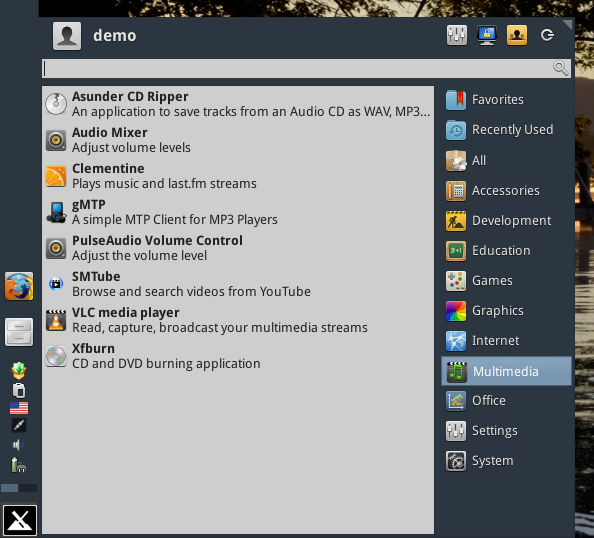
Office:

Screenshots of the Settings and System menus would certainly be overkill here -- there's just too much in there (!) -- but here's a shot of the Settings Manager:

I don't think I'll be installing MX-15, but I'll go back later and set up persistence on the flash drive. I spent just enough time with the live session to explore the system a bit, and to create this blog post, and I came away very impressed. Officially called "a special version of antiX" and without its own listing in the DistroWatch page hit rankings, MX might be the best-kept secret of the Linux world. Excellent community effort... Kudos!

Subscribe to:
Posts (Atom)
